How to Apply Online for RGPV Revaluation (Reval) and Retotal – Complete Step-by-Step Process
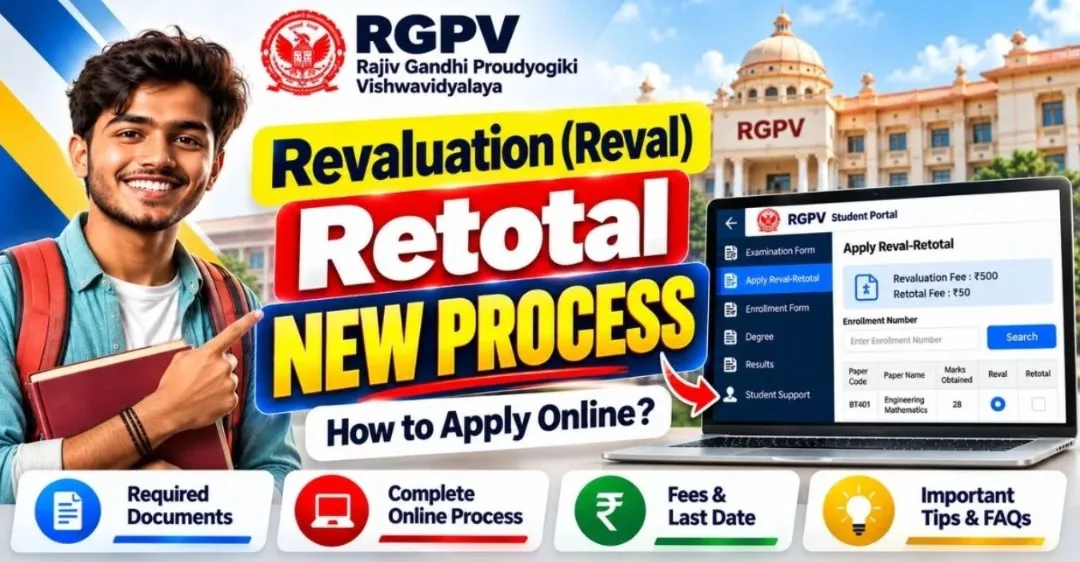
If you are an RGPV (Rajiv Gandhi Proudyogiki Vishwavidyalaya) student and are not satisfied with your marks in any subject, you can apply online for Revaluation or Retotal. Many students find this process a little confusing, so in this article we explain the entire procedure step by step in simple language, with images, so you don't have to look anywhere else.
What is the Difference Between Revaluation and Retotal?
- Revaluation (Reval): Your answer sheet is checked again.
- Retotal: Only the totalling of your marks is rechecked, i.e. whether the marks given by the examiner have been added up correctly or not.
The fees for both are different, and you will see them while filling in the form. So when applying, select only the option you actually need.
What You Need to Fill the RGPV Revaluation/Retotal Form
- Your RGPV Student Portal Username and Password
- Debit/Credit Card, Net Banking or UPI for online payment
How to Apply for RGPV Revaluation Online?
Follow the steps given below to apply for RGPV Revaluation.
Step 1: Log in to the RGPV Student Portal
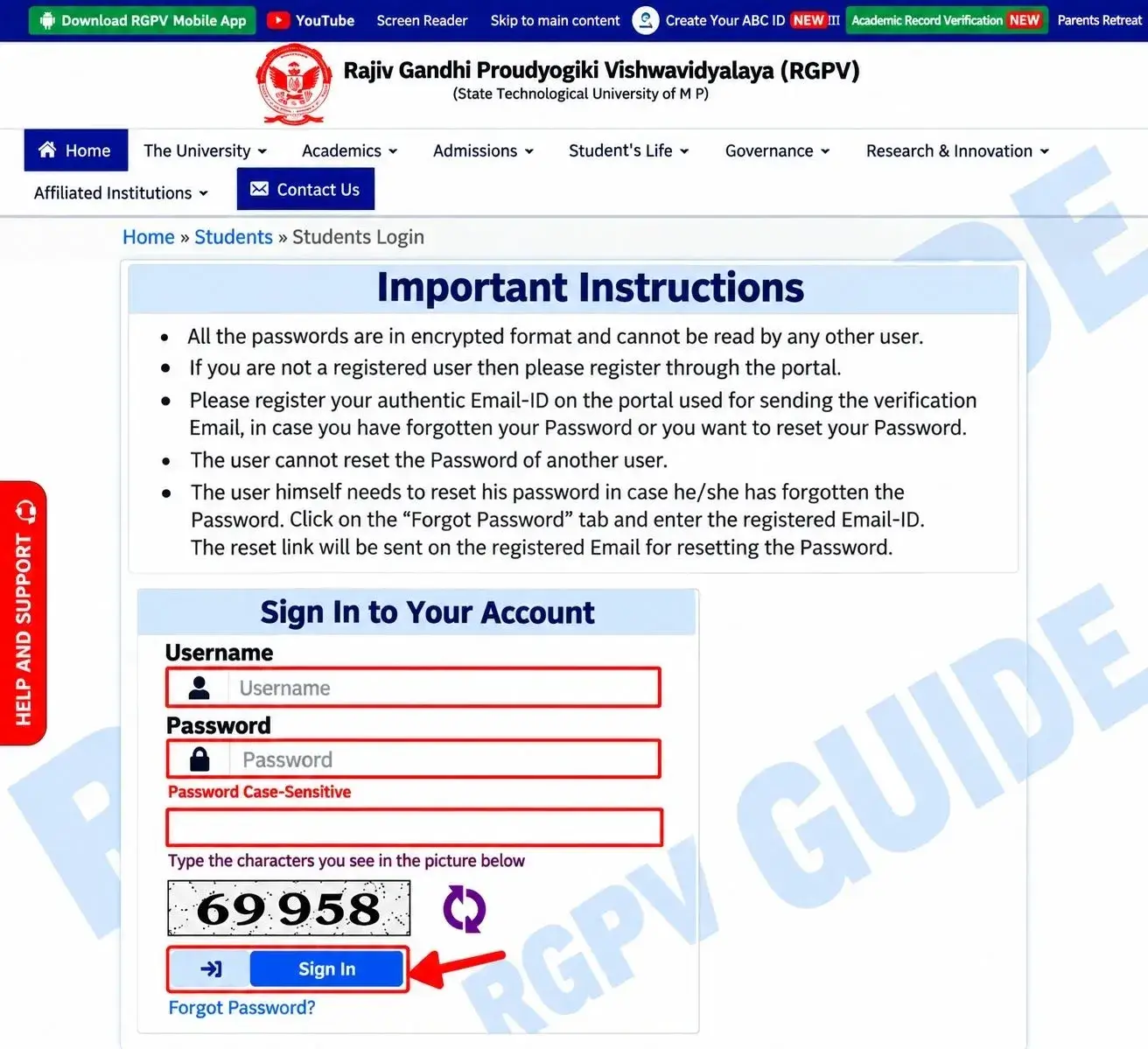
Login Page
- Enter your Username.
- Enter your Password (note that the password is case-sensitive).
- Type the Captcha Code shown below (for example, something like "69958" in the image) into the box.
- Now click the Sign In button.
If you don't remember your password, click "Forgot Password?" and reset it using your registered email ID.
Step 2: Go to Student Services
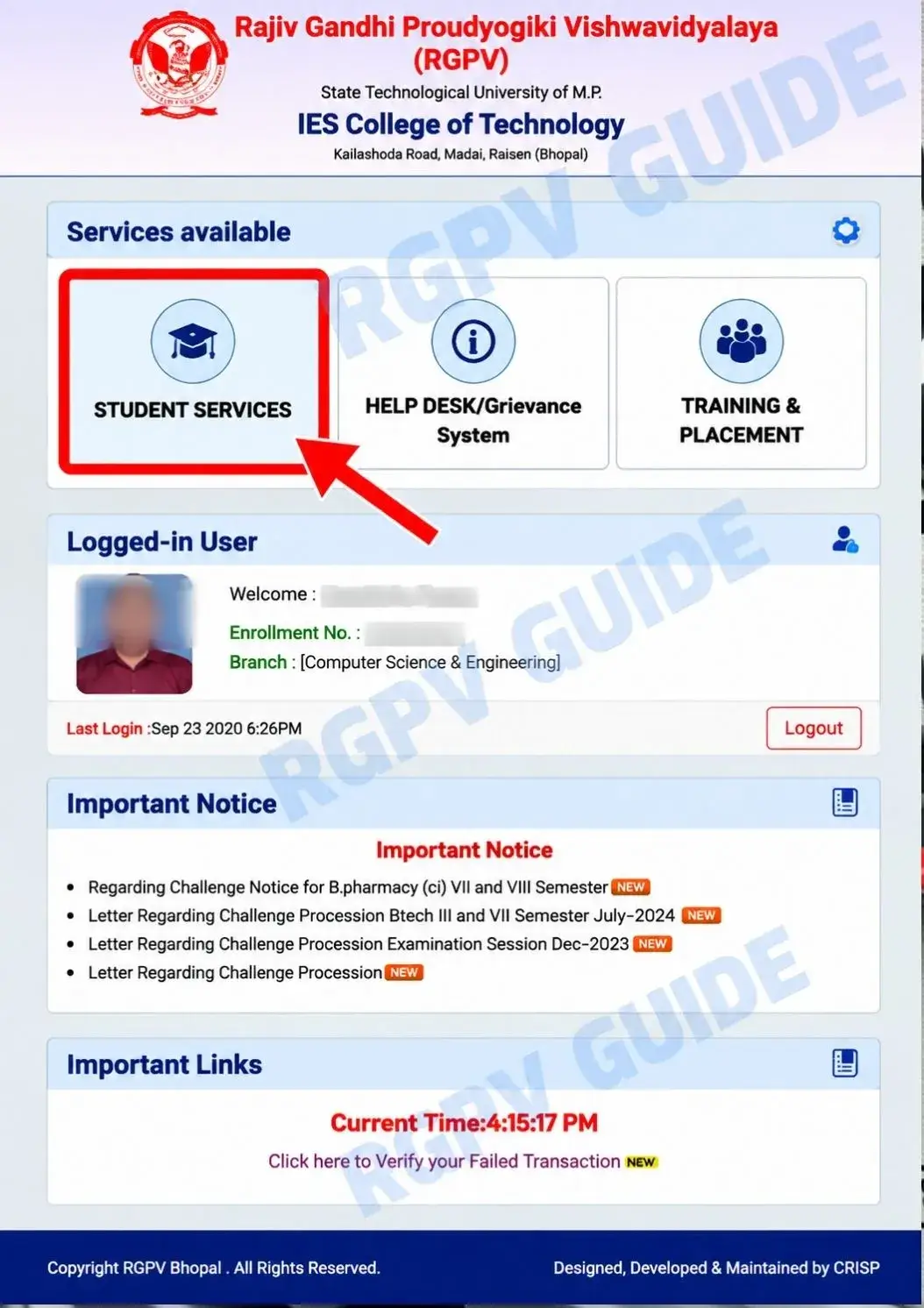
Student Services
As soon as you log in, your dashboard opens, showing your photo, name, Enrollment Number and Branch. You will get three options here:
- Student Services
- Help Desk/Grievance System
- Training & Placement
You have to click on Student Services.
Step 3: Open the Menu Button
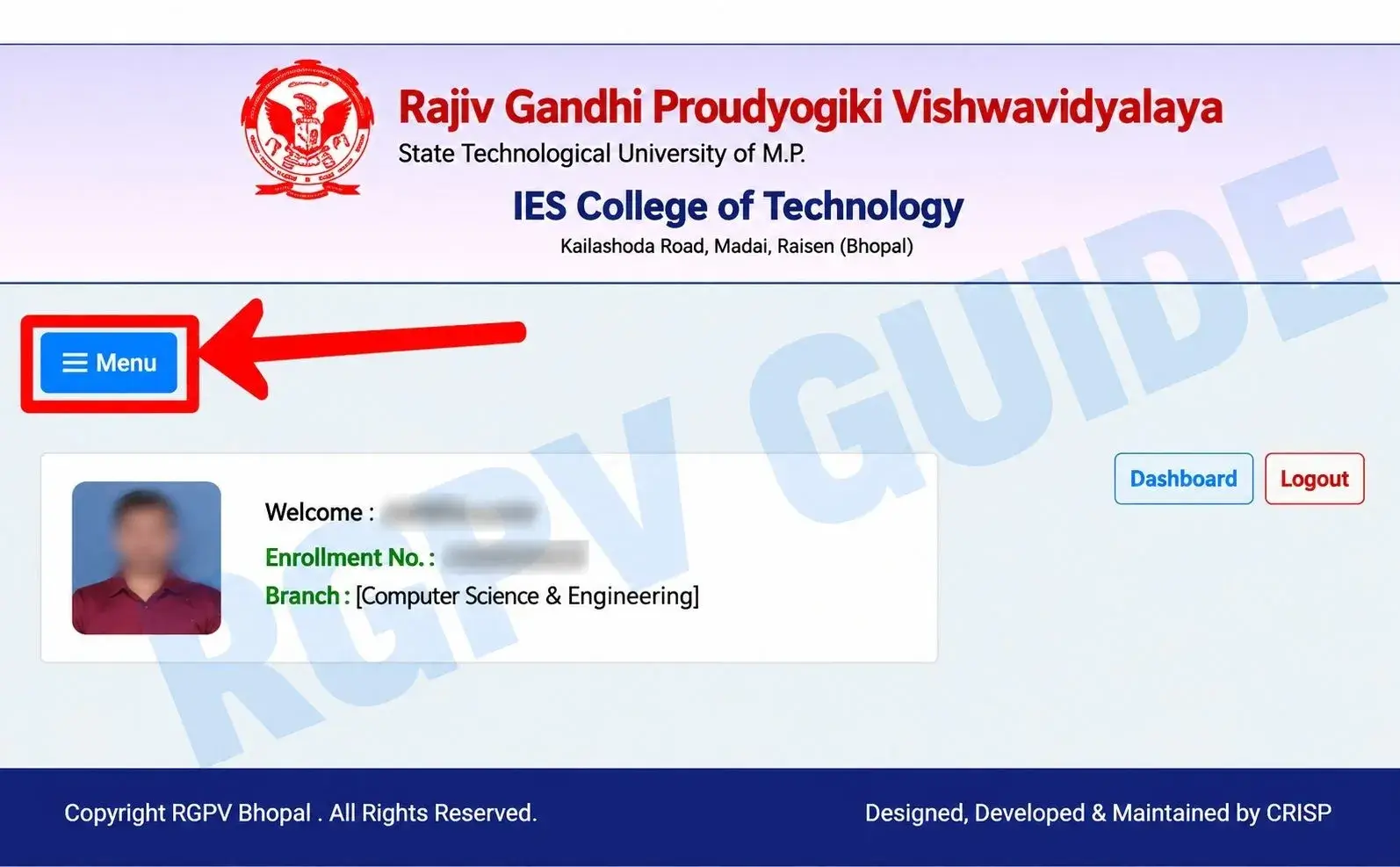
Menu
You will see a Menu button at the top left of this page. As soon as you click it, a long list opens on the side with options such as Enrollment Form, Degree and Examination Form.
Step 4: Choose the "Apply Reval-Retotal" Option
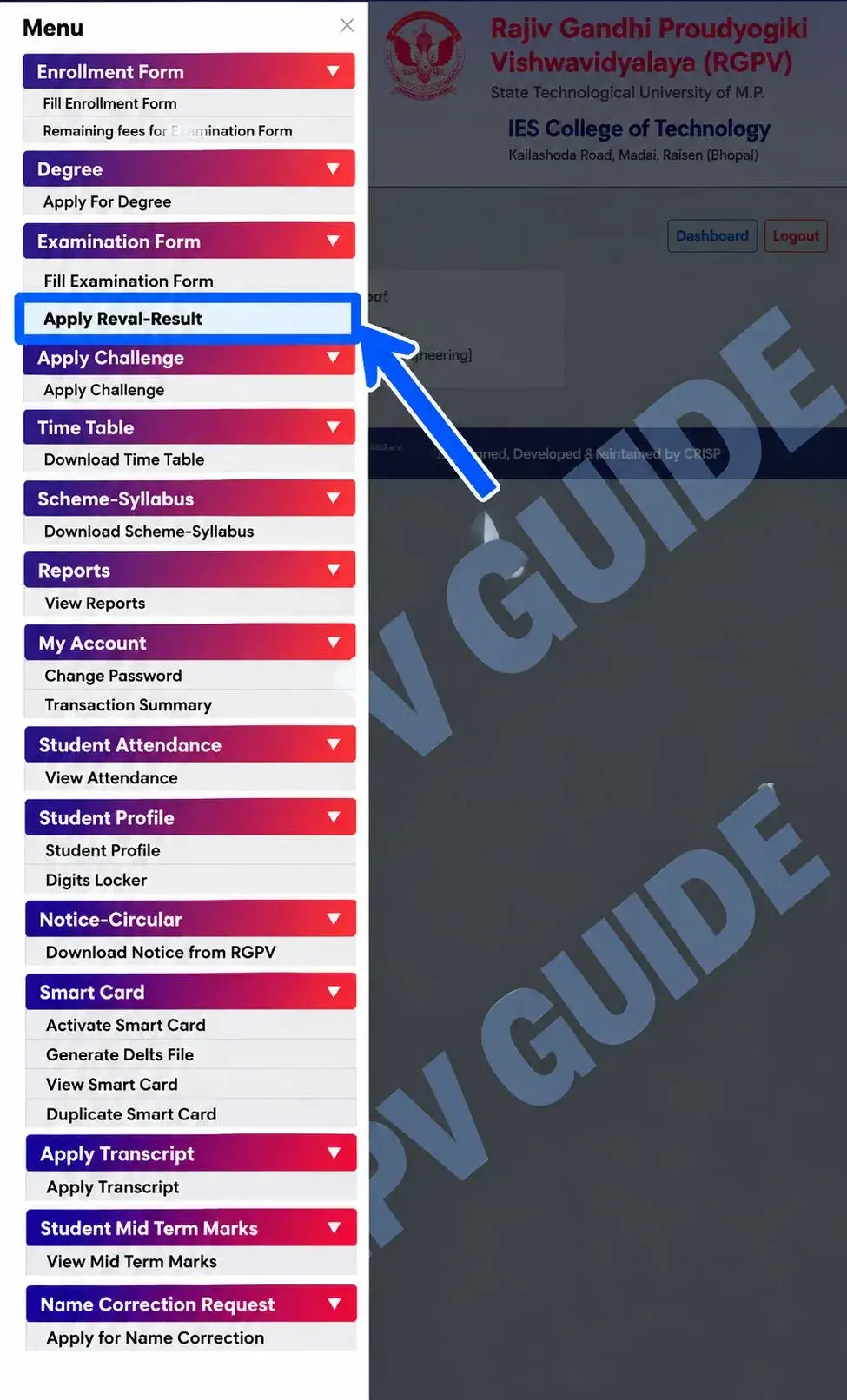
Apply Reval-Retotal
Inside the Examination Form section of the menu, you will find "Apply Reval-Retotal". Click on it.
Step 5: Enter Your Enrollment Number and Search
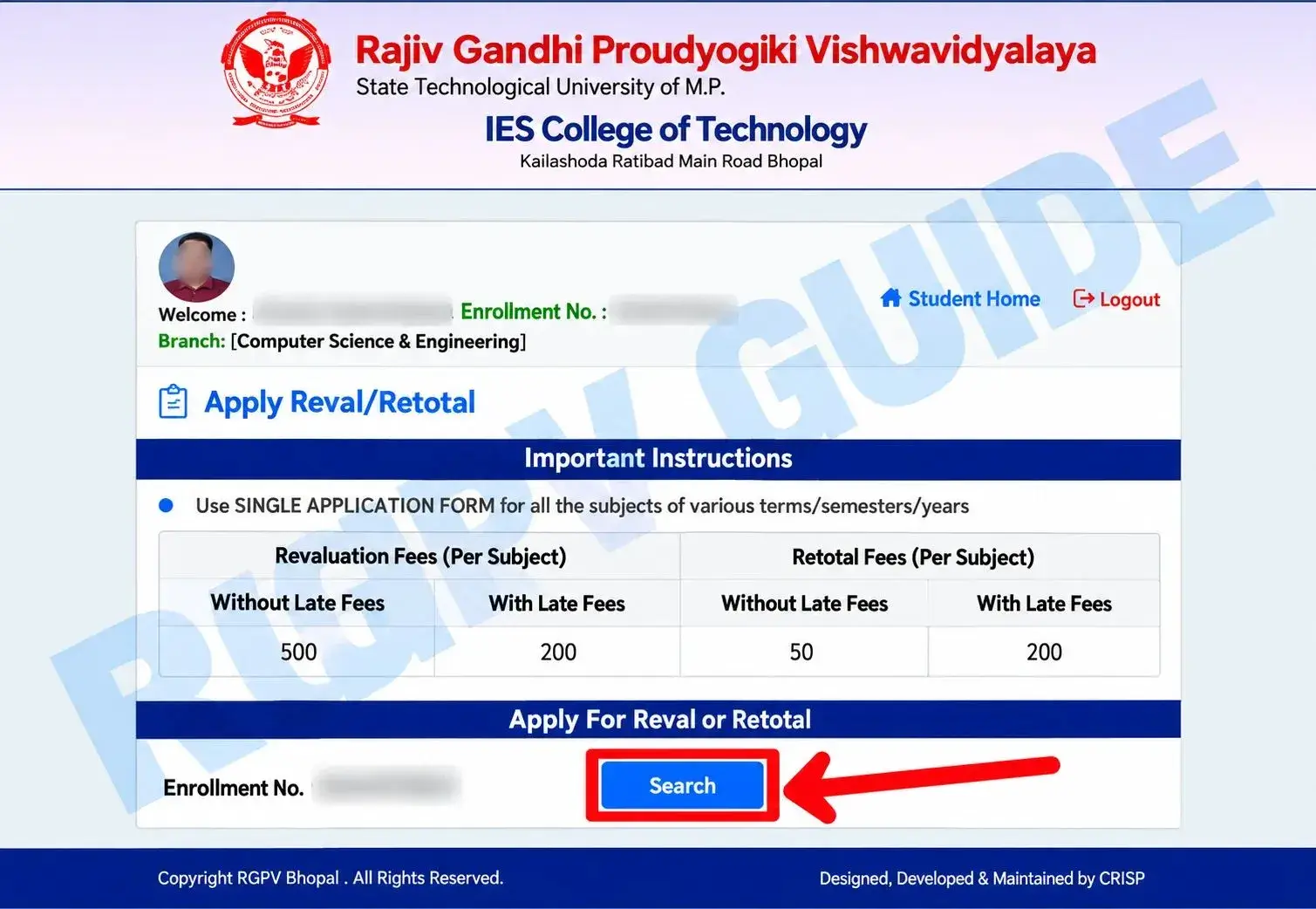
Search
On the page that opens, you will see the Revaluation and Retotal fee details at the top (for example, Revaluation ₹500 without late fee and Retotal ₹50 without late fee). Keep in mind that the university can change these fees from time to time, so treat the latest fee shown on the portal as final.
In the "Apply For Reval or Retotal" section below, your Enrollment Number will already be filled in. Just press the Search button.
Step 6: Select Your Semester
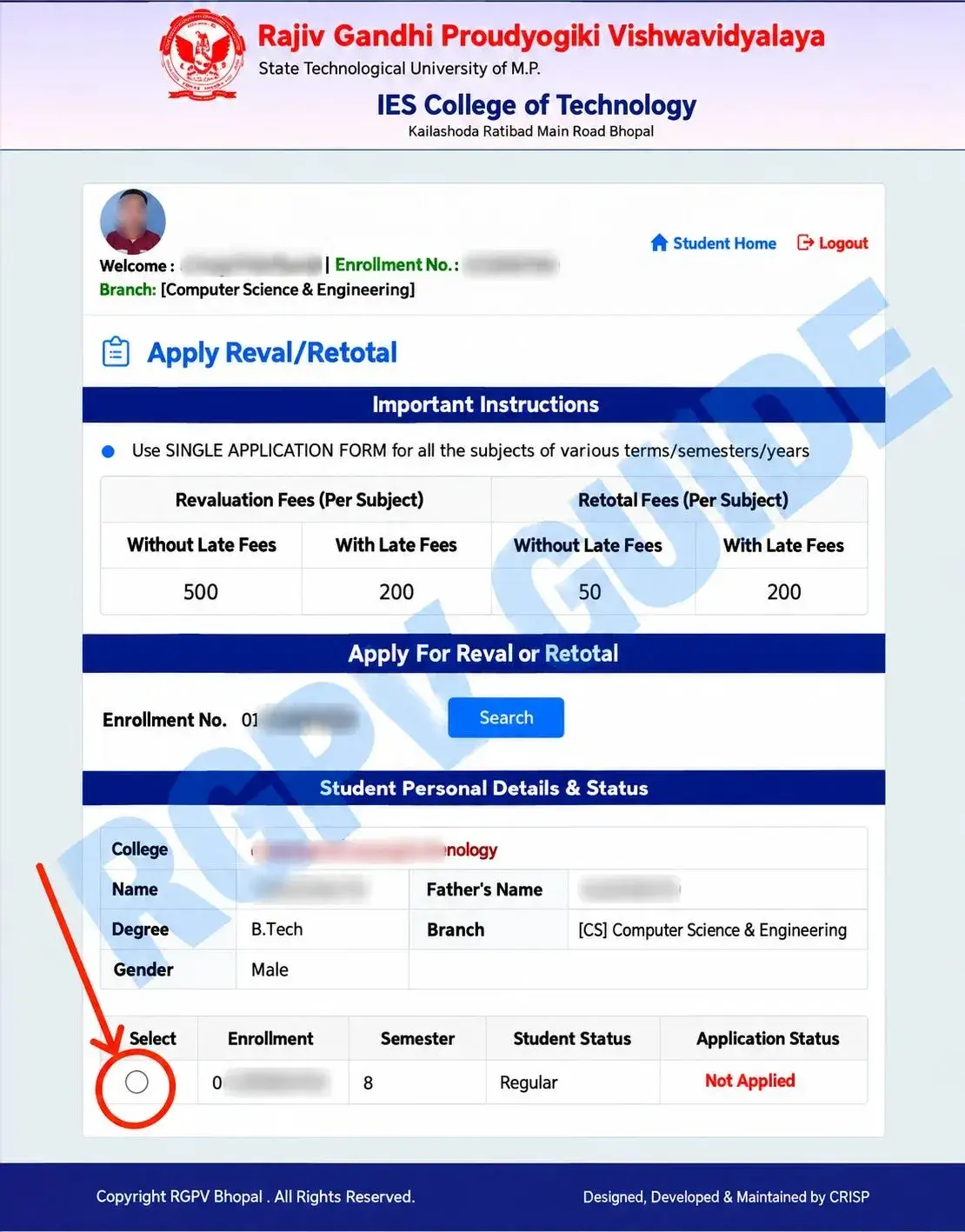
Select Semester
As soon as you search, your complete details (College, Name, Father's Name, Degree, Branch, Gender) will appear. Just below it is a table showing Enrollment, Semester, Student Status and Application Status.
Click the round button (radio button) next to the semester whose subjects you want to apply Reval or Retotal for.
Step 7: Choose Subjects and Mark Reval or Retotal
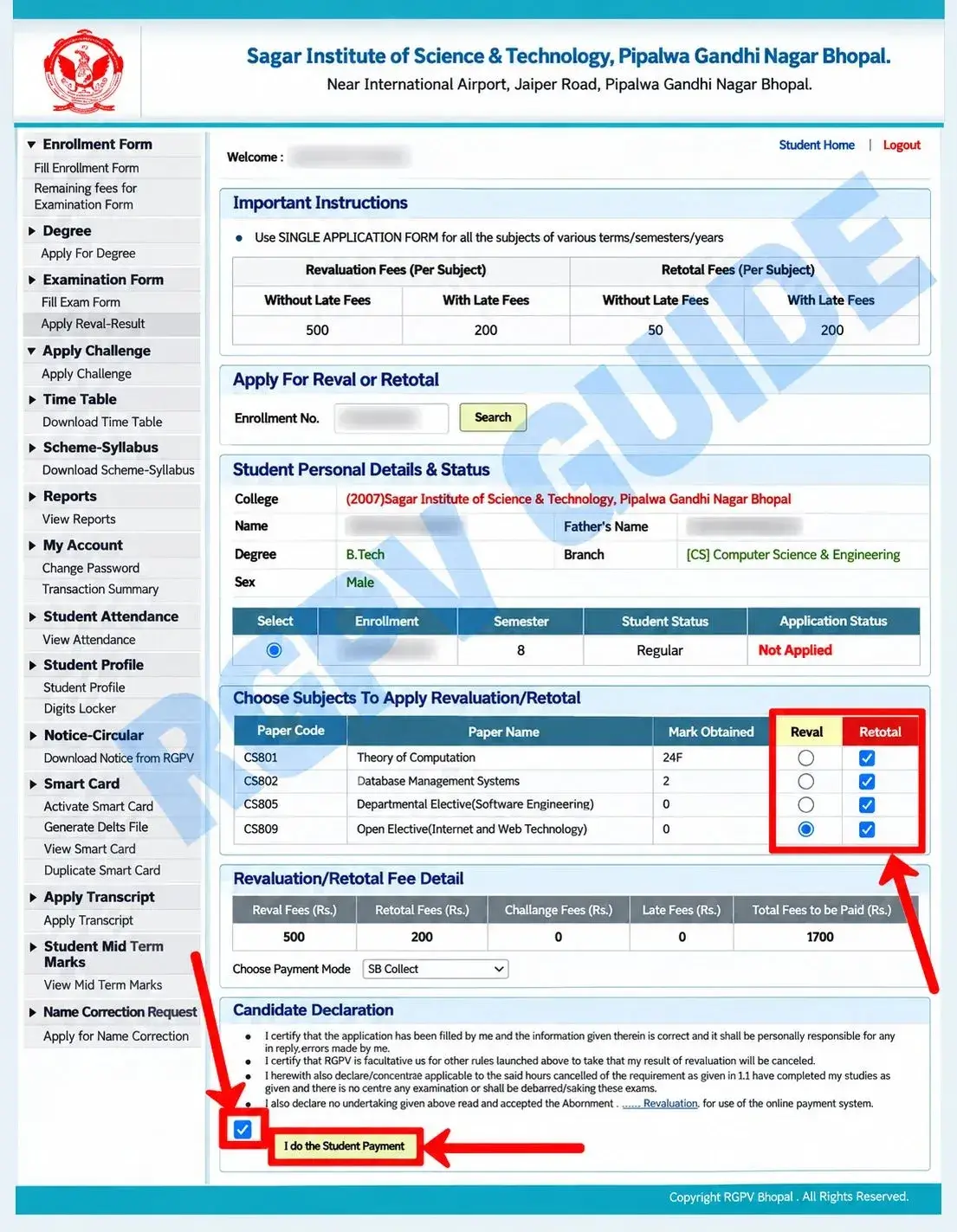
Choose Subjects & Go to Payment
As soon as you select the semester, a new table appears – "Choose Subjects To Apply Revaluation/Retotal". It lists all your subjects with the Paper Code, Paper Name and Marks Obtained. Against each subject there are two columns:
- Reval (radio button)
- Retotal (checkbox)
For the subject you want Revaluation, select the Reval button, and for the subject where you only want Retotal, tick its checkbox.
Below this you will see the Revaluation/Retotal Fee Detail table, where your total fee is calculated automatically [Reval Fee + Retotal Fee + Late Fee (if you did not apply on time)].
In Payment Mode, Bill Desk is selected by default. You can change it as per your convenience.
At the very bottom, in the "Candidate Declaration", three points are written. After reading them, tick the checkbox below to accept the Terms & Conditions. Then click the "Go for Online Payment" button.
Step 8: Make the Online Payment
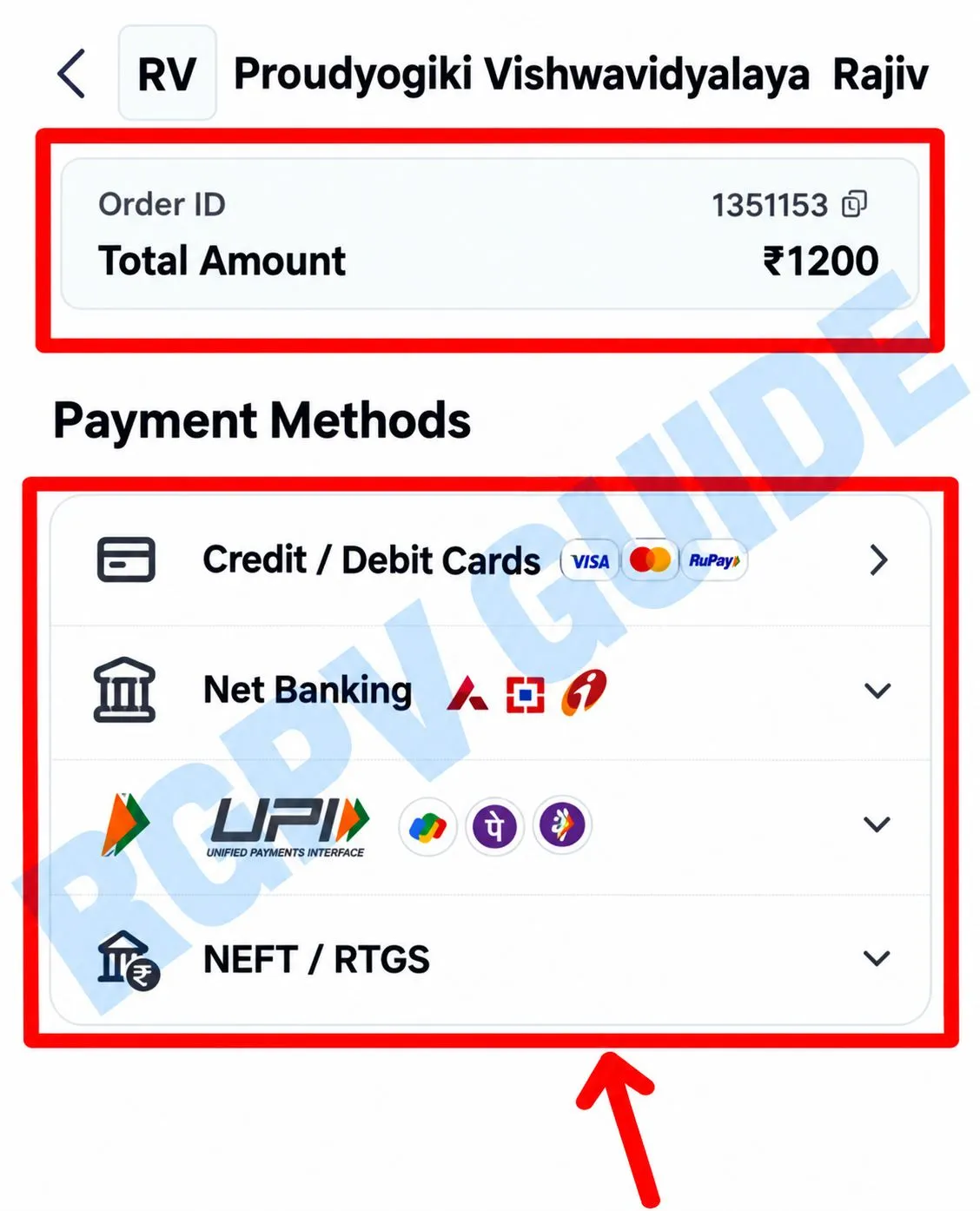
Payment Options
Now you will reach the BillDesk payment page. Here you will see:
- The Order ID and Total Amount (the same fee you saw in Step 7)
- Several options under Payment Methods:
- Credit/Debit Cards (Visa, Mastercard, RuPay)
- Net Banking
- UPI
- NEFT/RTGS
Choose any payment mode that suits you and complete the payment. As soon as the payment is successful, your Reval/Retotal form is submitted and the Application Status changes to "Applied".
After a successful payment, keep a screenshot or receipt of the transaction/application details safely.
How Much is the RGPV Revaluation Fee?
RGPV fees can change with time and examination. So do not rely only on an old article or screenshot.
| Type | Regular Fee (without Late Fee) | Late Fee |
|---|---|---|
| Revaluation | ₹500 per subject | ₹200 per subject |
| Retotal | ₹50 per subject | ₹200 per subject |
How to Check the Last Date for RGPV Revaluation?
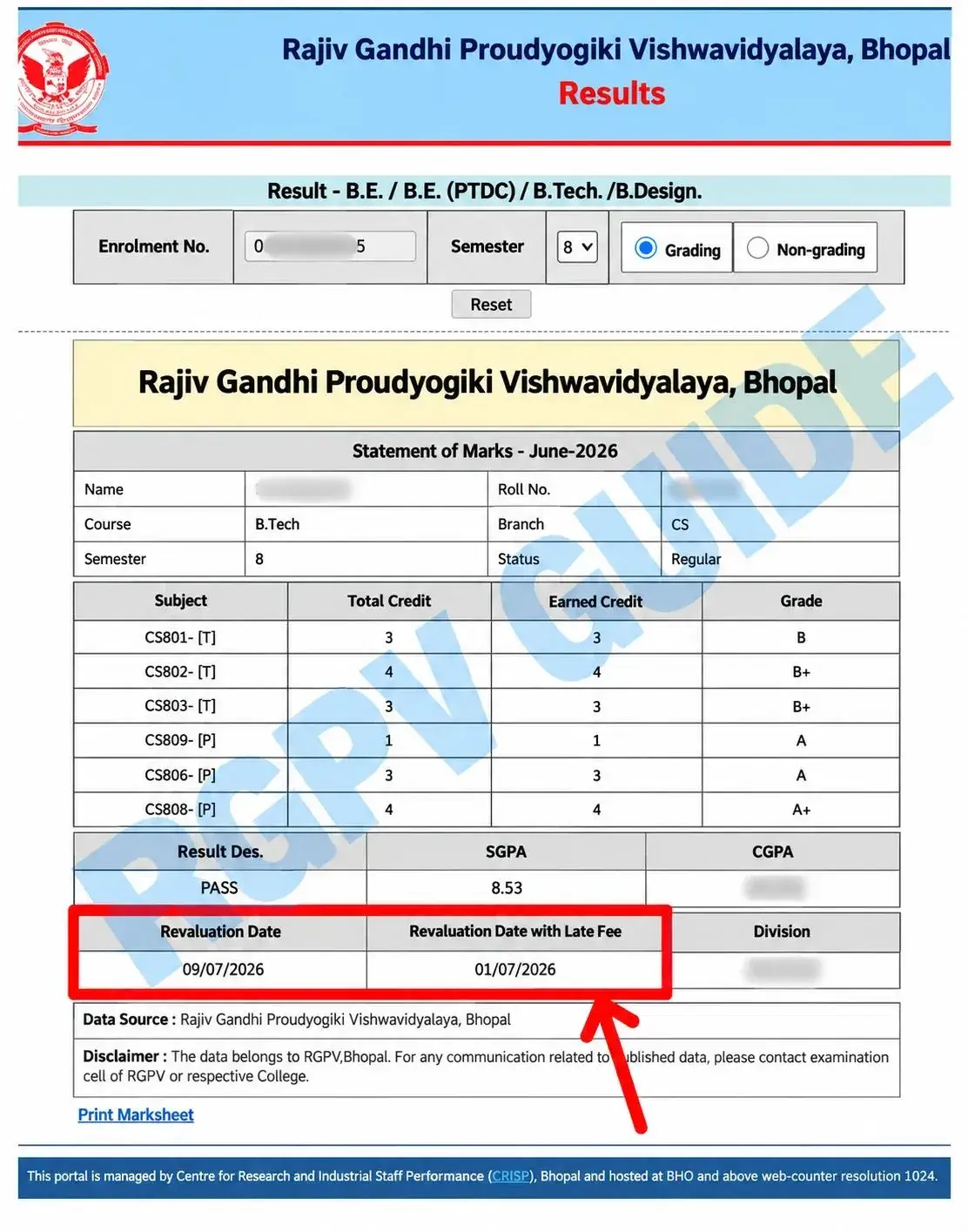
Last Date on Marksheet
When RGPV declares the result and you download your Online Marksheet, it also contains important information related to Revaluation.
By looking at the dates given against "Revaluation Date" and "Revaluation Date with Late Fee" on the Marksheet, you can easily find out the last date to fill the Revaluation form.
For example, in the Marksheet shown above:
- Revaluation Date: 05/07/2026
- Revaluation Date with Late Fee: 07/07/2026
So before applying for Revaluation, make sure to check both of these dates on your Marksheet.
Important Points to Remember
- Select all subjects in a single application before filling the form, because RGPV follows a single application form policy.
- Don't panic if the payment fails – you can check your transaction status using the "Click here to Verify your Failed Transaction" option.
- To avoid the late fee, submit the form before the last date given by the university.
- Always keep a printout or screenshot of your payment.
Frequently Asked Questions (FAQ)
Q1. When does the RGPV Revaluation result come out?
It usually takes a few weeks to a month for the result to come. For accurate information, keep checking RGPV's official website or notice section.
Q2. Can I apply for both Reval and Retotal in one subject?
If the portal provides both options for your selected subjects, you can select the applicable option. Before final selection, be sure to read the fee and instructions.
Q3. What should I do if the Application Status shows "Not Applied" after filling the form?
In that case, check whether the payment was completed properly using the "Verify Failed Transaction" option, and if needed, contact the University or apply again.
Q4. Where can I check the Revaluation Result?
You can check the result in the Revaluation Result section of RGPV's official result website. If you find it confusing, you can also check it easily from this website.